Sales Tax
With DepositFix, you can calculate sales tax dynamically based on location.
You can use this feature to determine whether your customers should be charged a tax or not and how much. DepositFix takes care of that for you automatically; using our integration with TaxJar, the form will automatically check the location (this works for all countries), and determine the tax amount accordingly.
📌 In order to enable automatic Tax calculation, you need to have your seller address added to your DepositFix dashboard.
From your dashboard, click on Settings >> Address
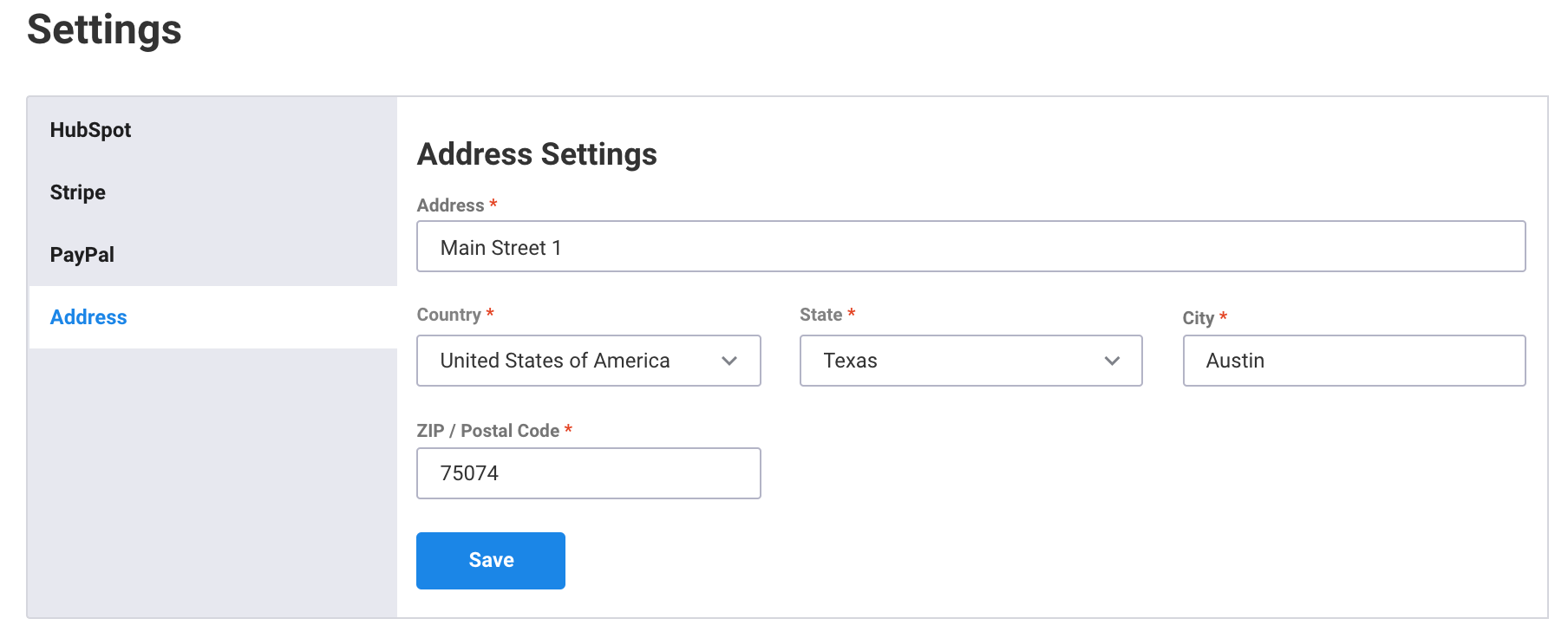
Setting up Automatic tax calculation is very simple. To set it up check the “Automatic Tax Calculation” checkbox on the form builder.
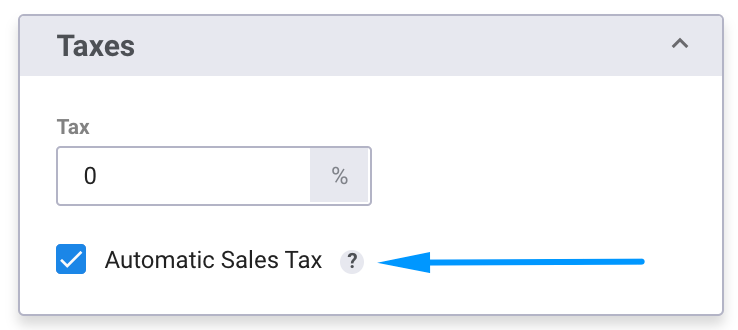
This will automatically add a billing address field to your form (the field is added as part of the DepositFix widget, NOT to the original HubSpot form).
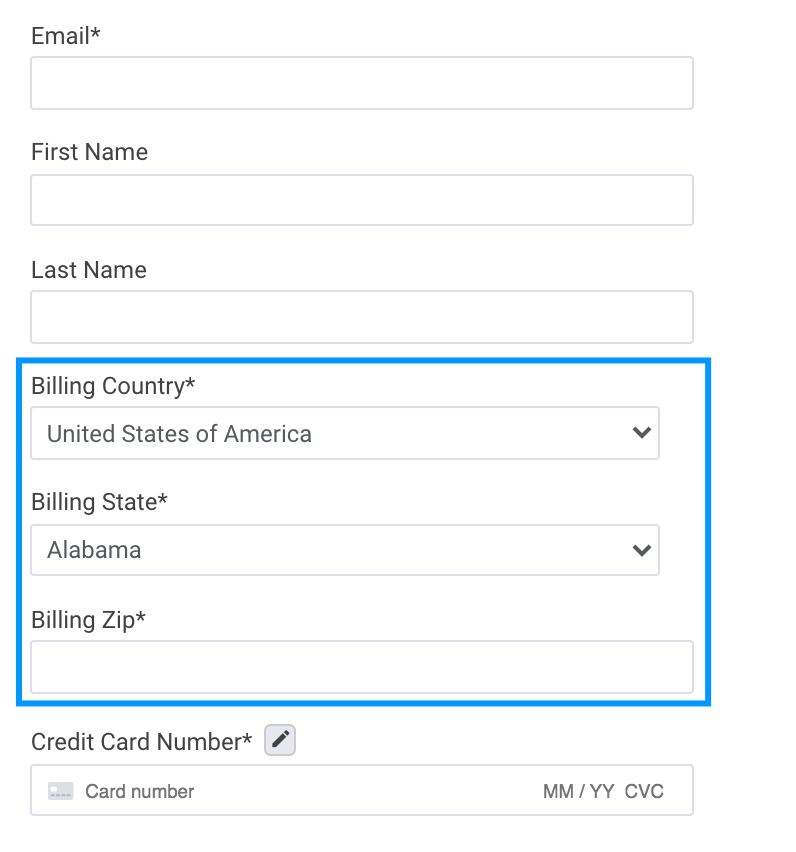
The billing address field will change dynamically based on the buyer country, according to the following:
In the United States
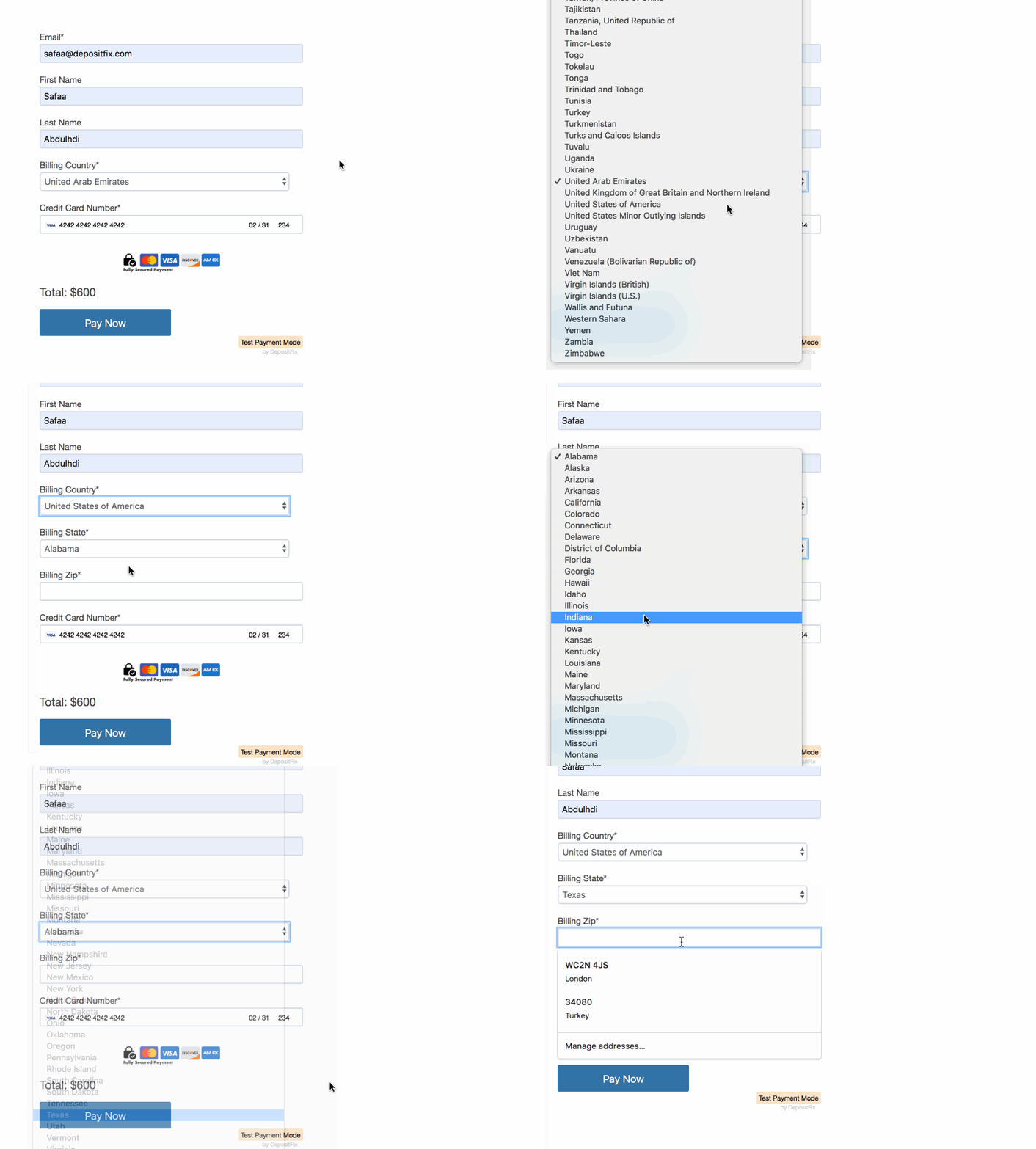
If you select the United States as your billing address, the form will automatically add two other fields for the state and the ZIP code; this is to ensure accurate tax calculation based on your area
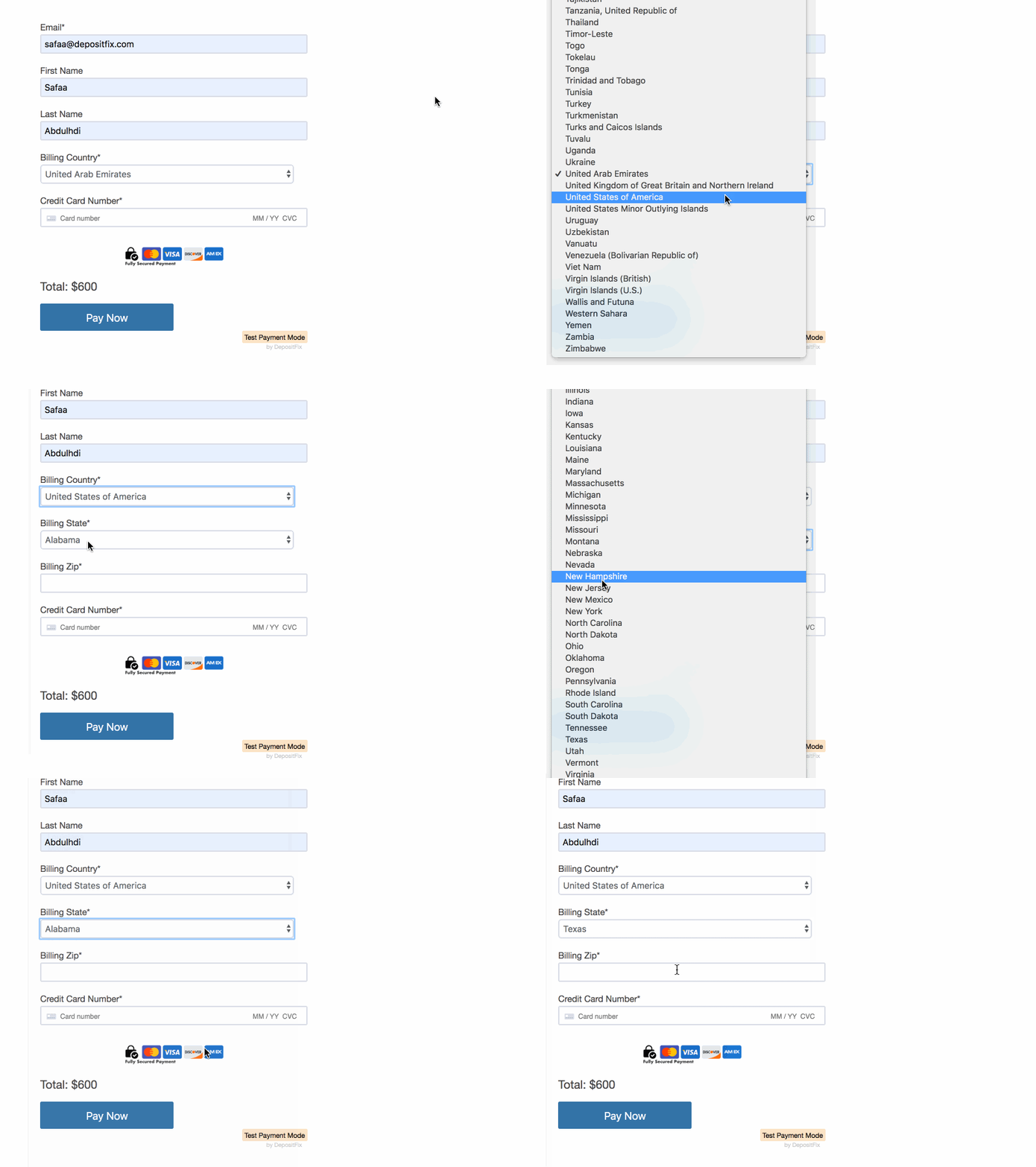
In Canada
If you select Canada as your billing address, the form will automatically show one other field for the state, as tax rates differ for each state within Canada.
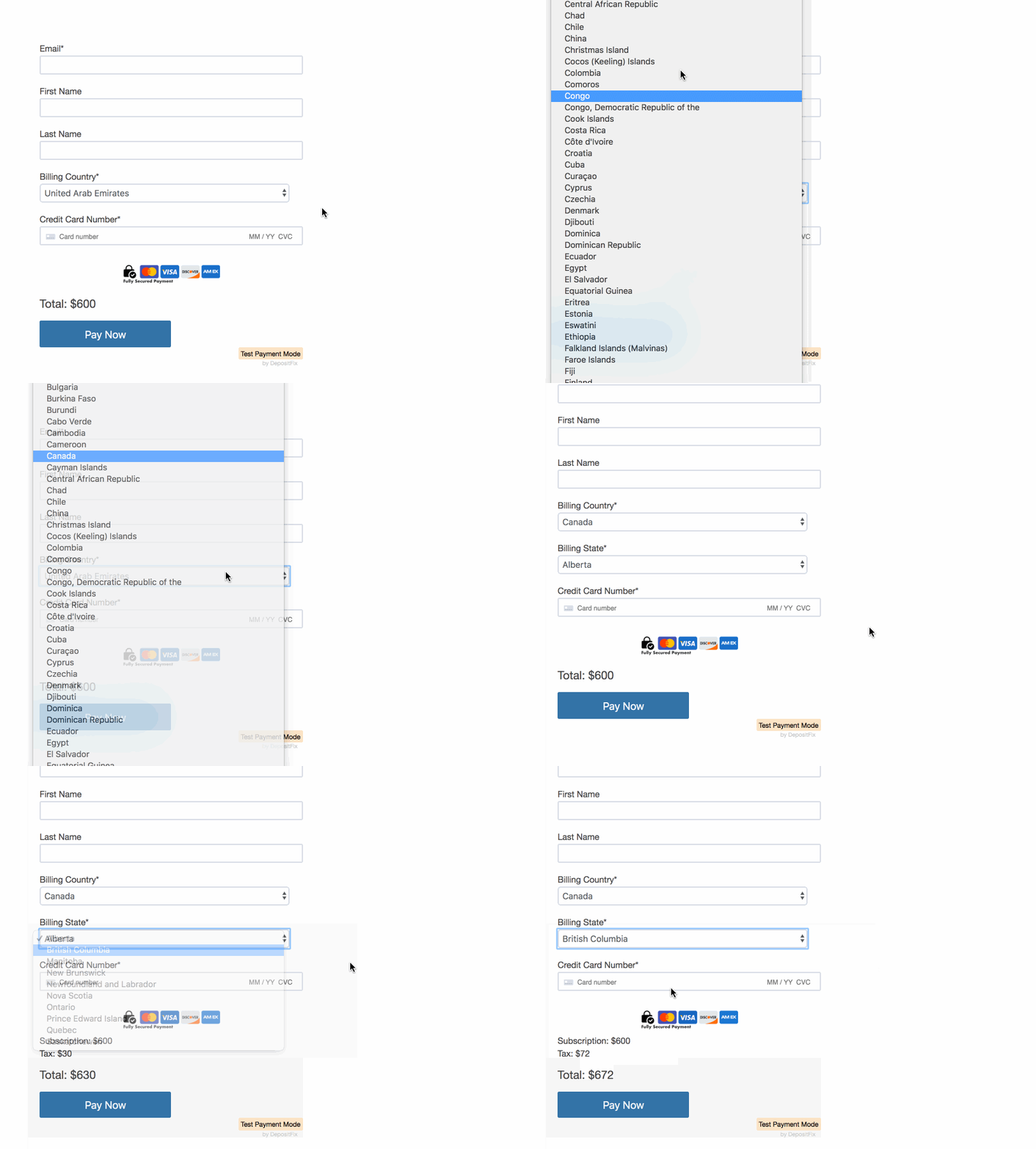
For the rest of the world
The form will automatically calculate tax based on the country.
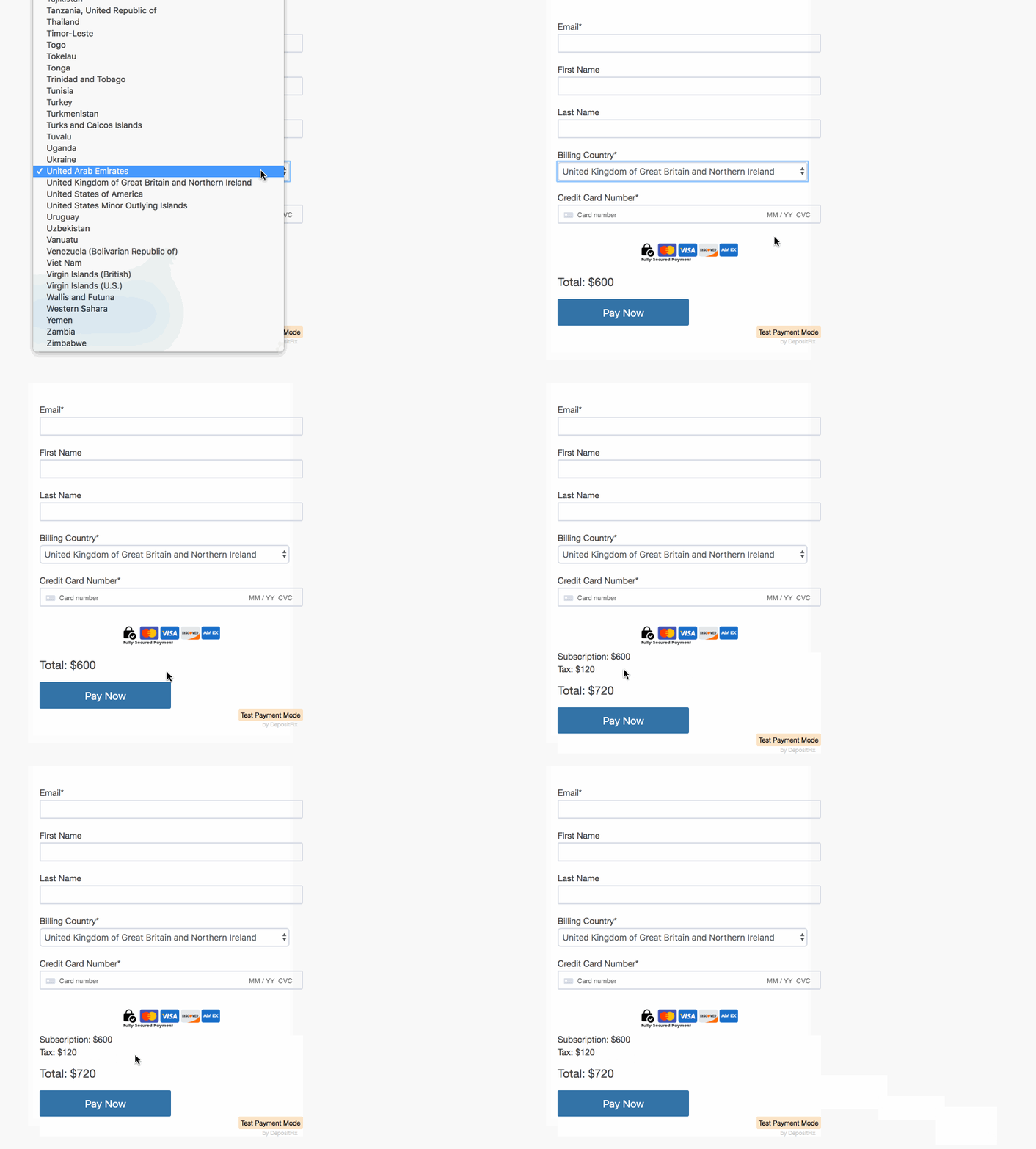
When submitting a form, the tax amount is automatically calculated and added to the total amount.
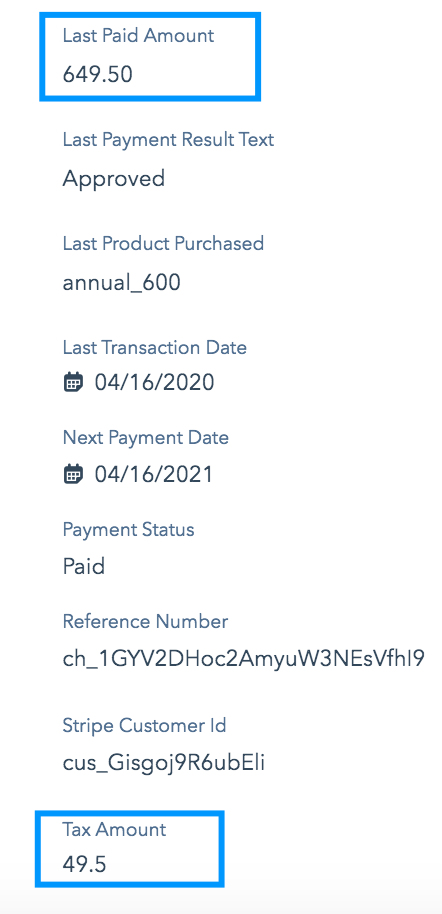
💡 In HubSpot, the payment information will show the total price and the tax amount.
More information on sales tax calculation here.