HubSpot Custom Workflow Actions
You can use the custom actions in HubSpot workflows to create charges or subscriptions from the workflow itself. This makes it easier to add follow-up charges, upgrade subscriptions, etc.
On HubSpot
-
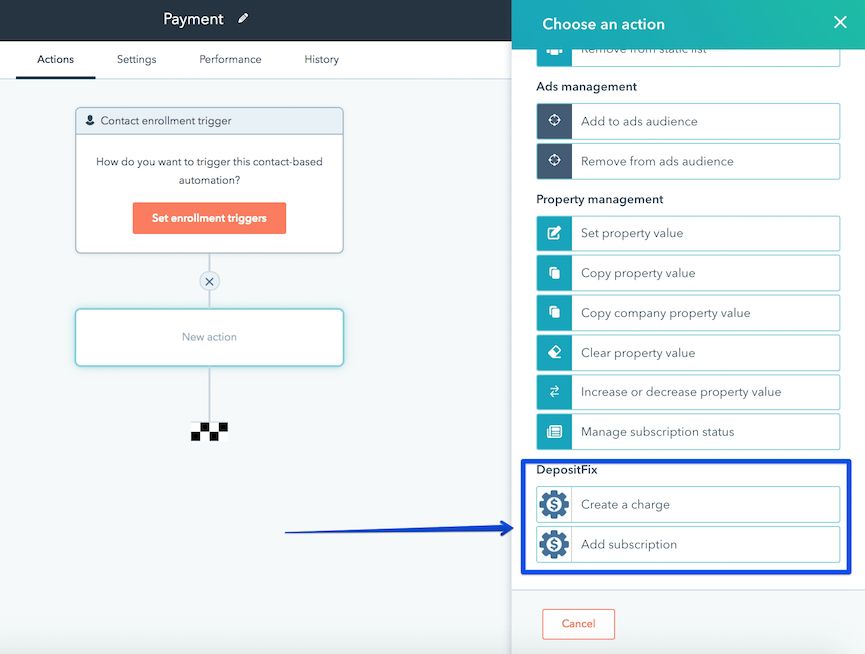
Create a new workflow and add a new action step.
-
Scroll down to the bottom of the list to find DepositFix custom actions, and select your desired action.
Create a Charge
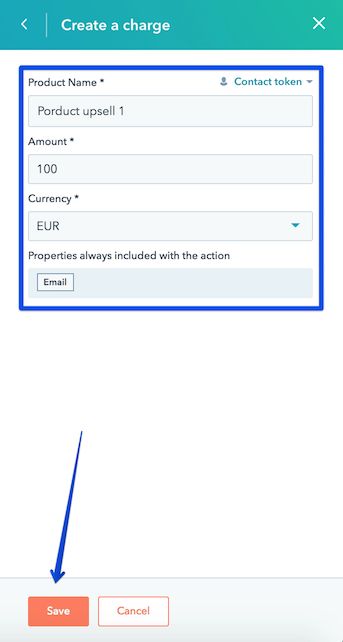
The Create a Charge action is used for single payment charges. This option loads all the currencies dynamically from the DepositFix backend. You can search for any currency in the currency dropdown as well.
To create a charge, fill out the required fields, and click Save.
Add Subscription
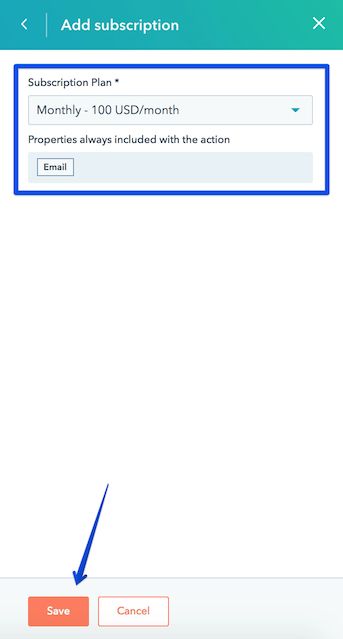
The Add subscription action dynamically loads Stripe from your DepositFix backend.
You can search for the right in the plans dropdown as well.
To add a subscription, fill out the required fields and click Save.
Once you select and save your action, you can test and turn on your workflow, and the Custom action will now be executed whenever a contact is enrolled in the workflow.
You can also use the response value with the “values equal branch” feature after you use the create charge/create subscription action in HubSpot. This will allow you to control the results of this action further and decide how the workflow continues based on whether the charge was successful or failed. You can stop the charge, add delay, or add retries accordingly.
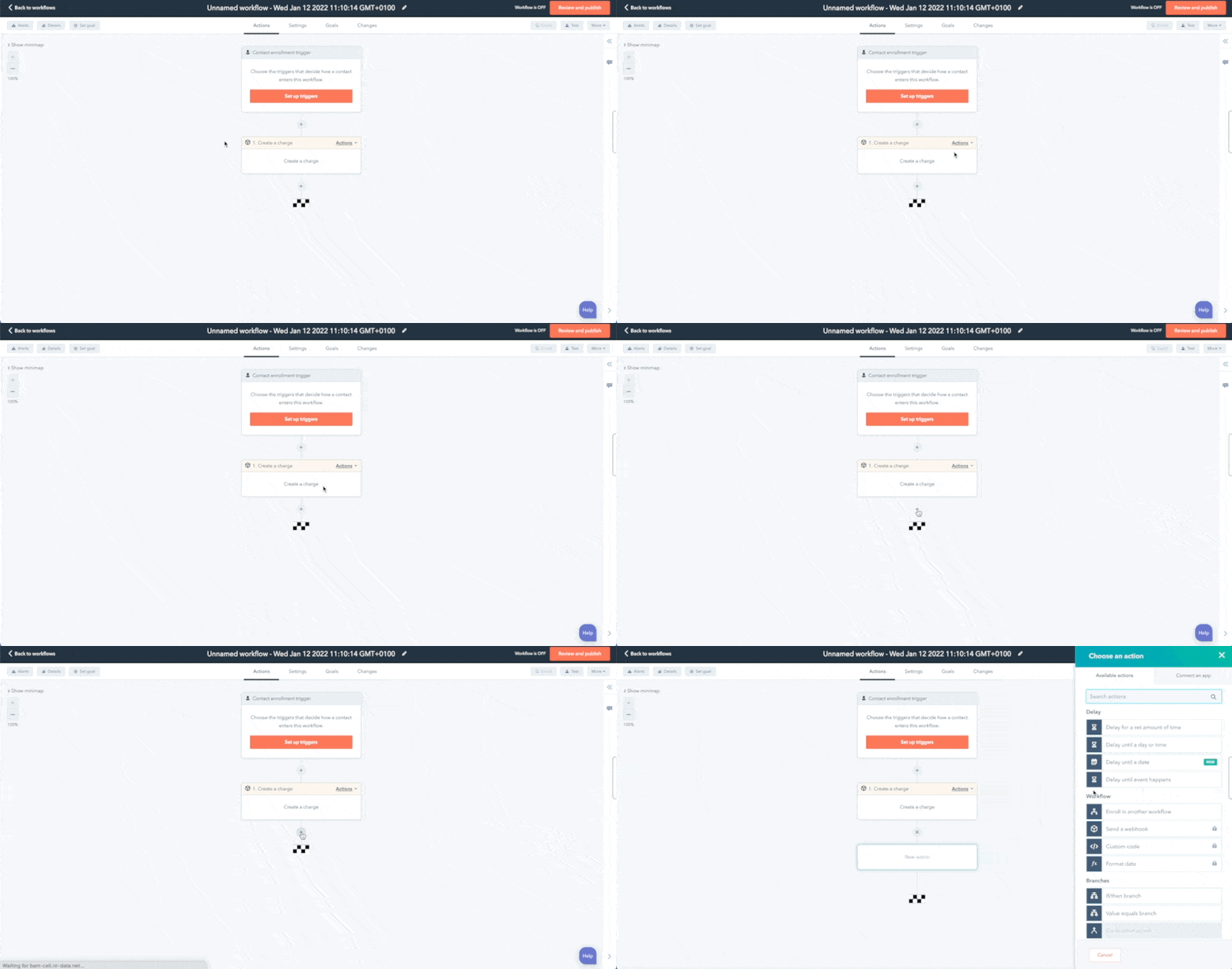
More information on how to set up values equal branches here.
Sending a webhook to DepositFix
Some DepositFix features are triggered by a webhook from your workflow. DepositFix accepts these webhooks only when they come from HubSpot. Unsigned requests are refused.
The DepositFix actions above (Create a Charge, Add Subscription and the other DepositFix actions) are signed by HubSpot automatically, so they need no changes.
- DepositFix estimate URLs: use the DepositFix Send a webhook custom action and paste the URL into its URL field. Nothing else to set.
- Any other DepositFix URL called from HubSpot’s own “Send a webhook” action: keep the action, set Authentication to Include request signature in header, and enter the DepositFix App ID 38652.
If a workflow that used to work now fails with an “unauthorized” error, check its webhook step against the two points above.