Test Your Depositfix Form
Enabling the Test Gateway
Our Form Test Gateway allows you to test your live DepositFIx forms without switching your payment gateways to test mode or reconnecting any of them.
To test your forms, scroll down to Payment Methods and toggle the Test checkbox on the form builder.
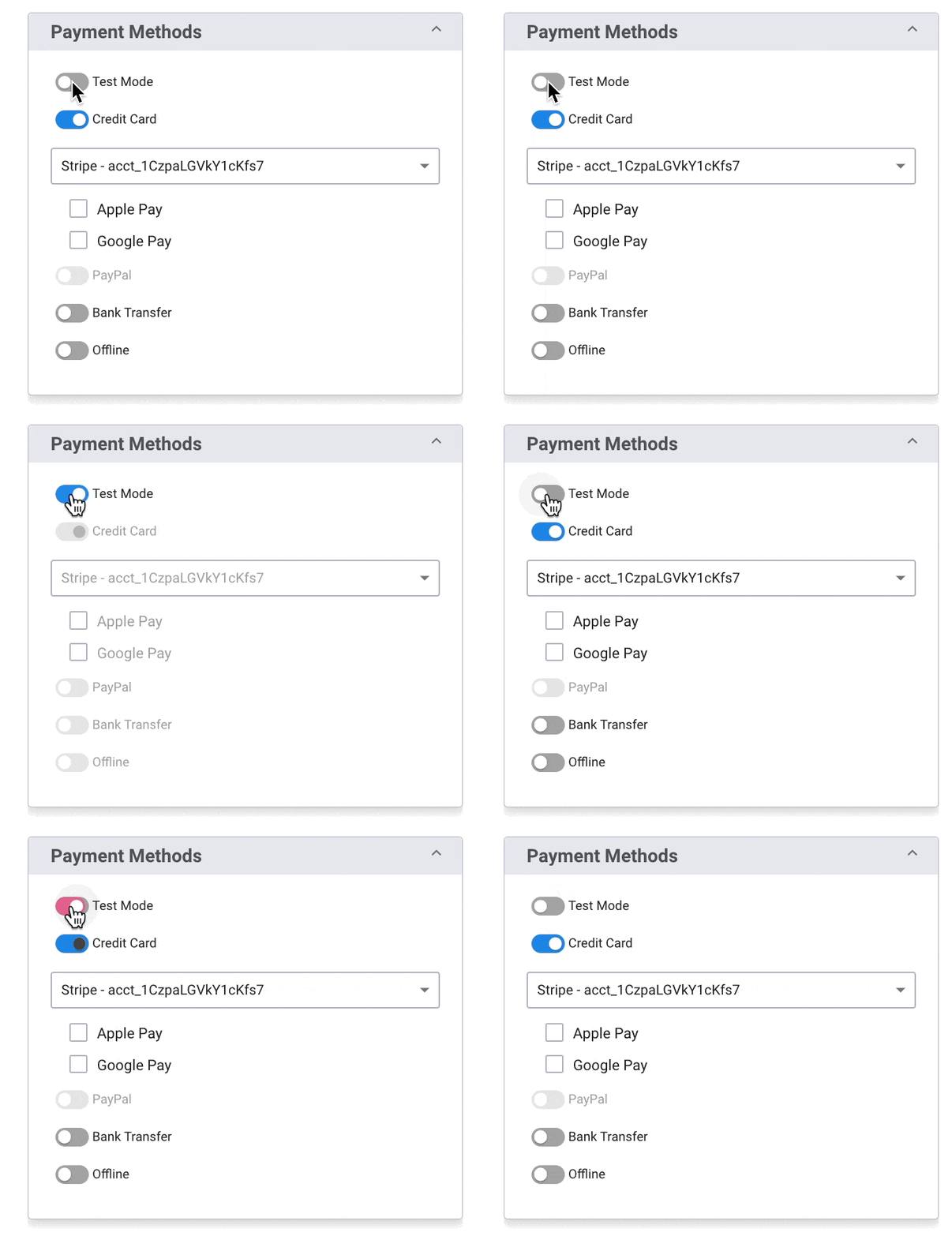
When the Test gateway is enabled, your form will automatically turn into test mode for all payment gateways enabled; you can verify this by seeing Test Payment Mode at the bottom of your form.
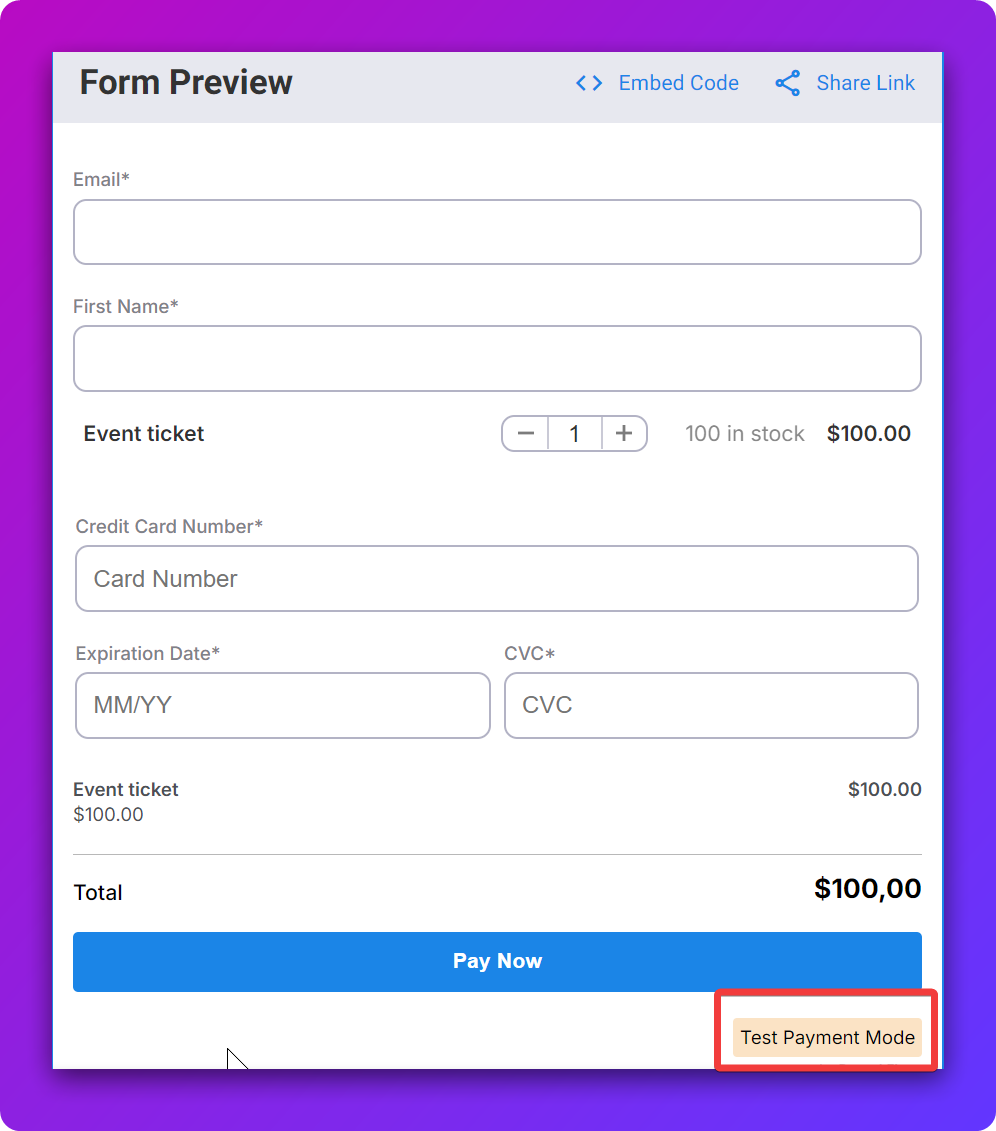
Submitting a Test Payment
To process a test payment, follow the steps below:
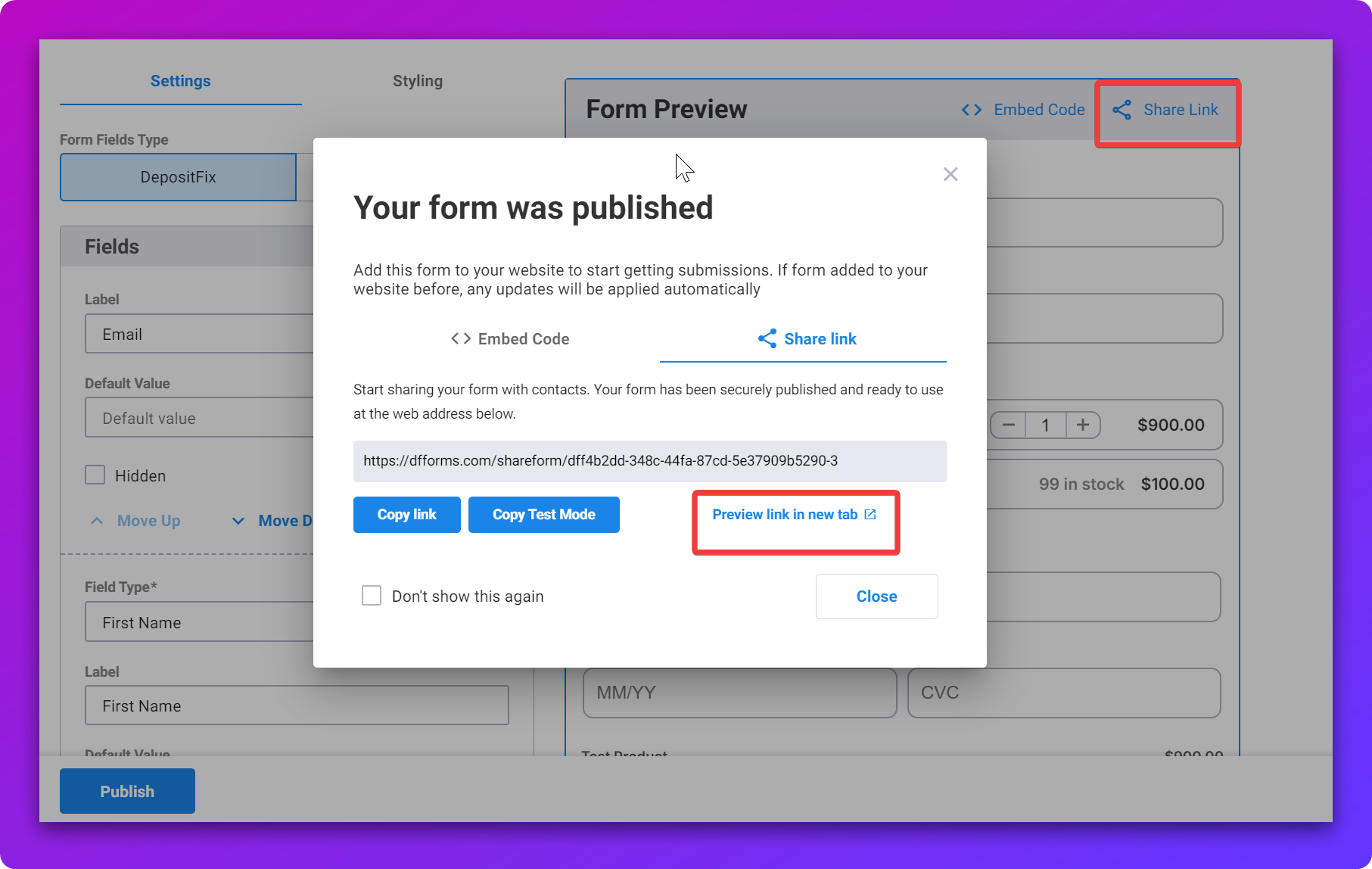
1. Fill out the form either from the website you embedded it on or access the form in your DepositFix account > Forms tab, and use the Preview link option as shown below :
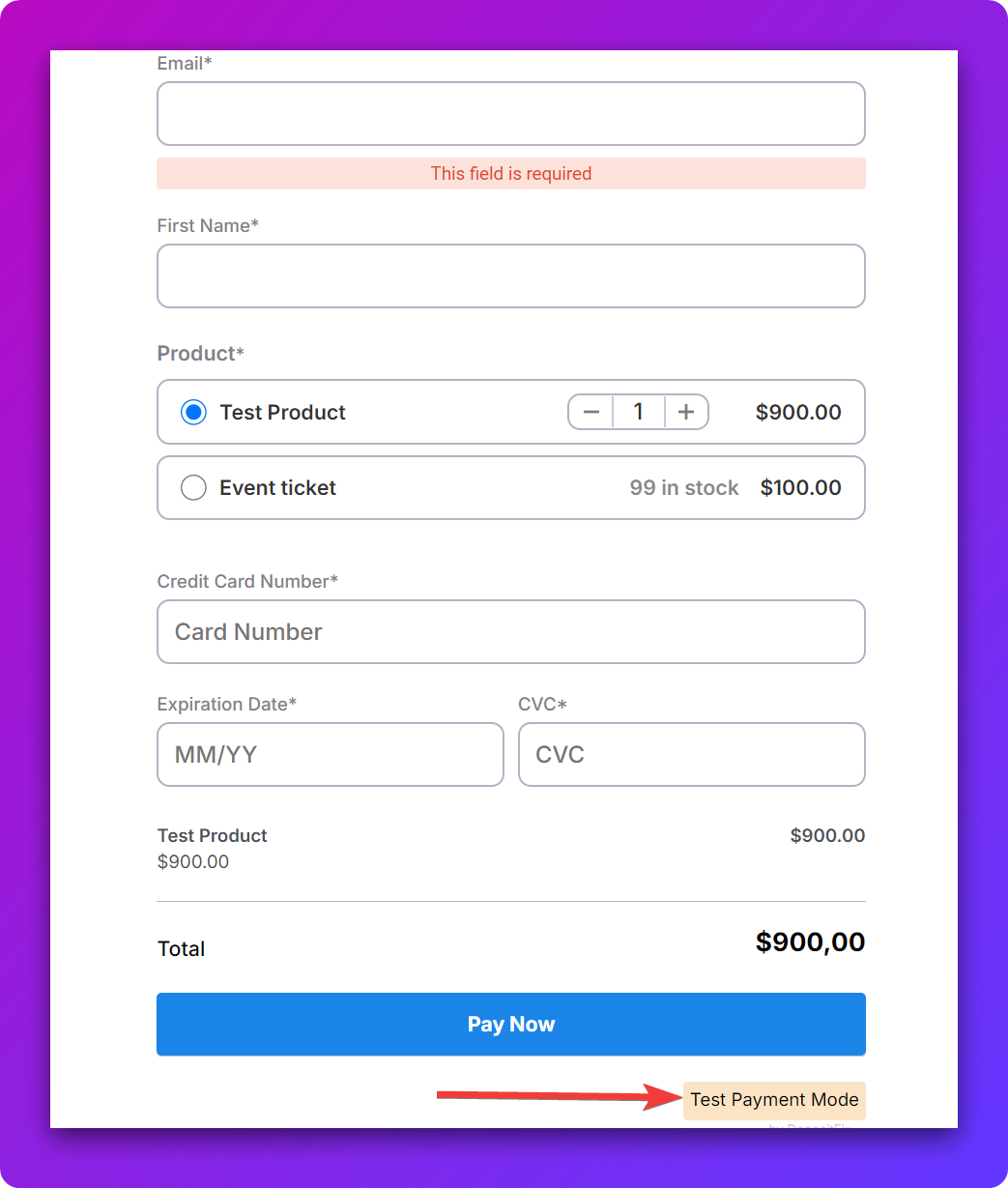
- Fill out all the required fields. For further details on test data that you can use to fill out fields such as Credit Card number , expiration date and CVV code , go to the Test Payment Mode link at the bottom right :
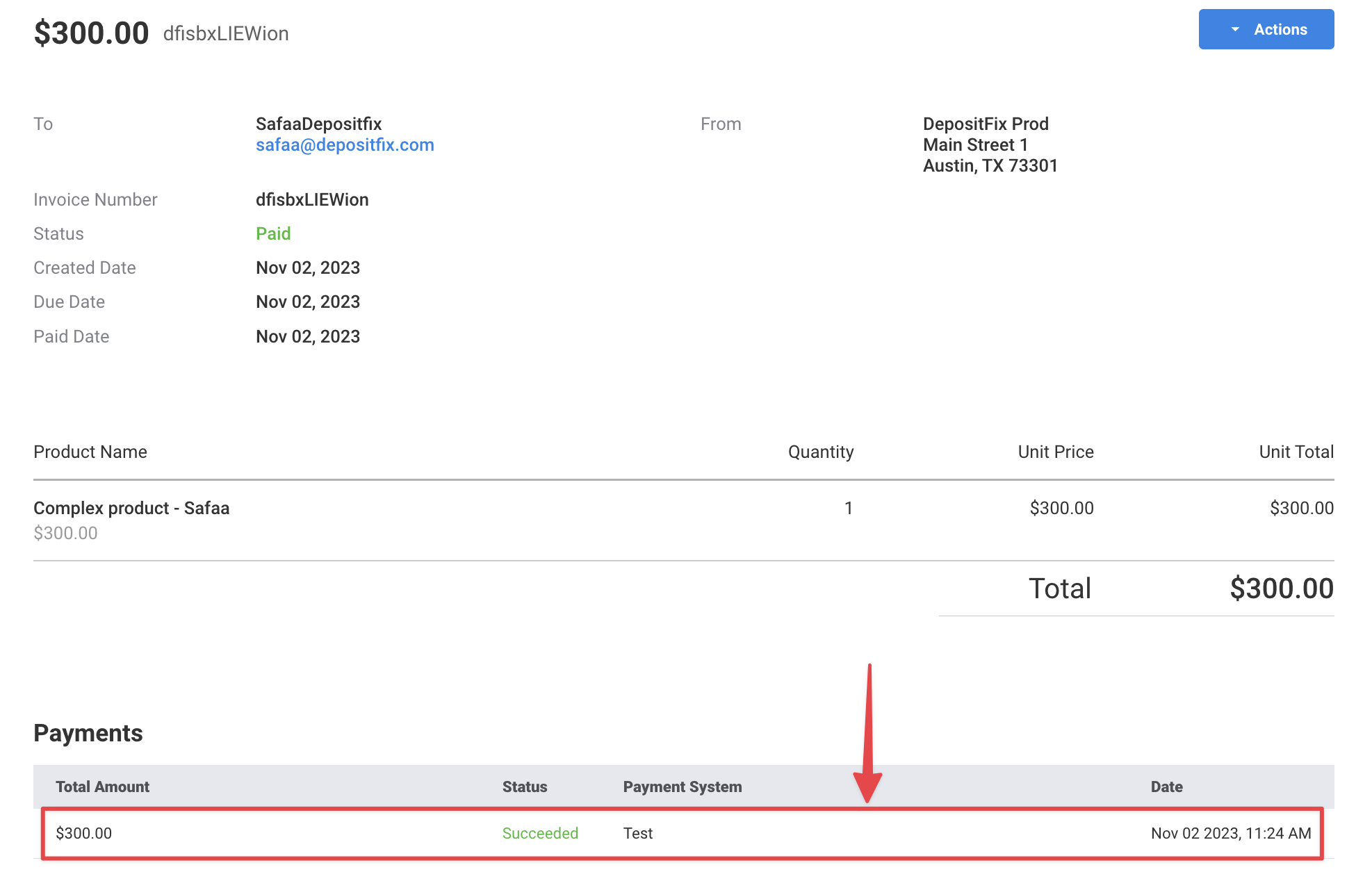
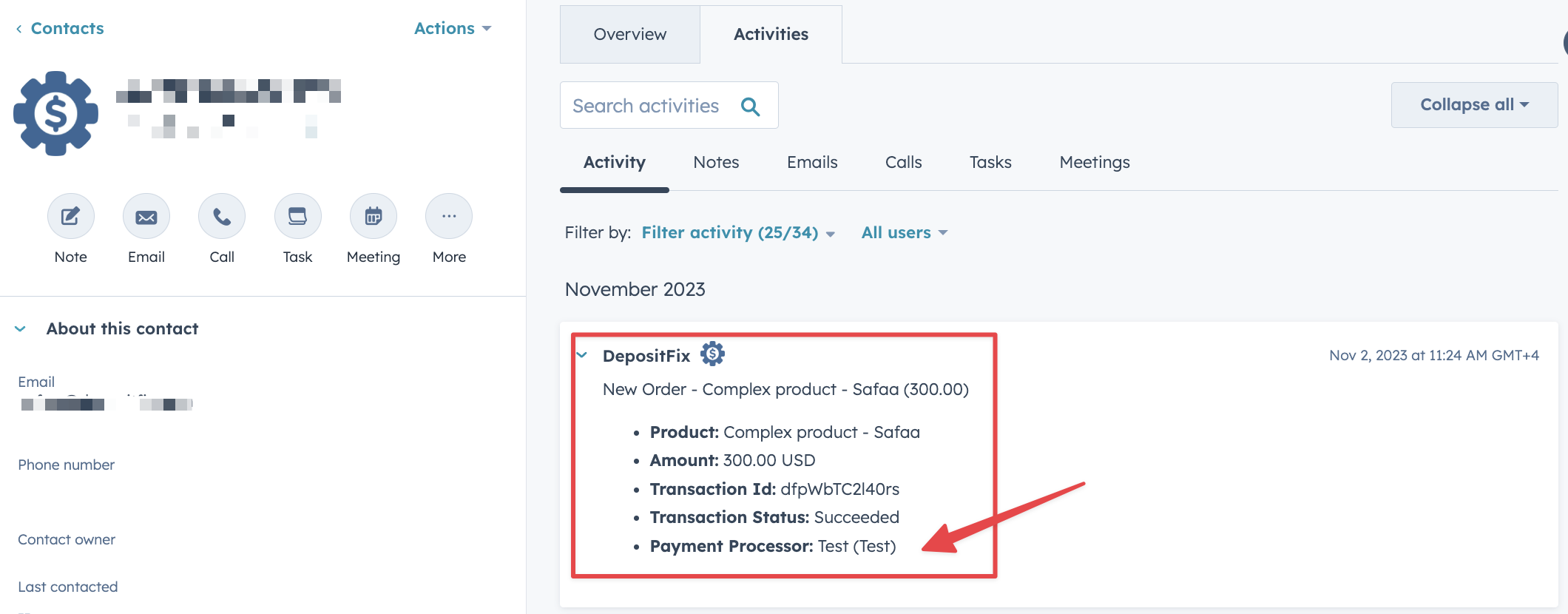
When you submit a test payment, everything will sync to DepositFix Payments and HubSpot Contacts and Deals as if it were a real payment; the only difference is that the payment processor will be marked as Test in all those sections.
DepositFix Payments
HubSpot
💡 You can filter by Payment Processor “Test” to exclude test submissions from your reporting.