Embedding your Form on a Wix Page
- In your Wix site editor, click the ”+” button > Embed code>Popular embeds>Embed HTML :
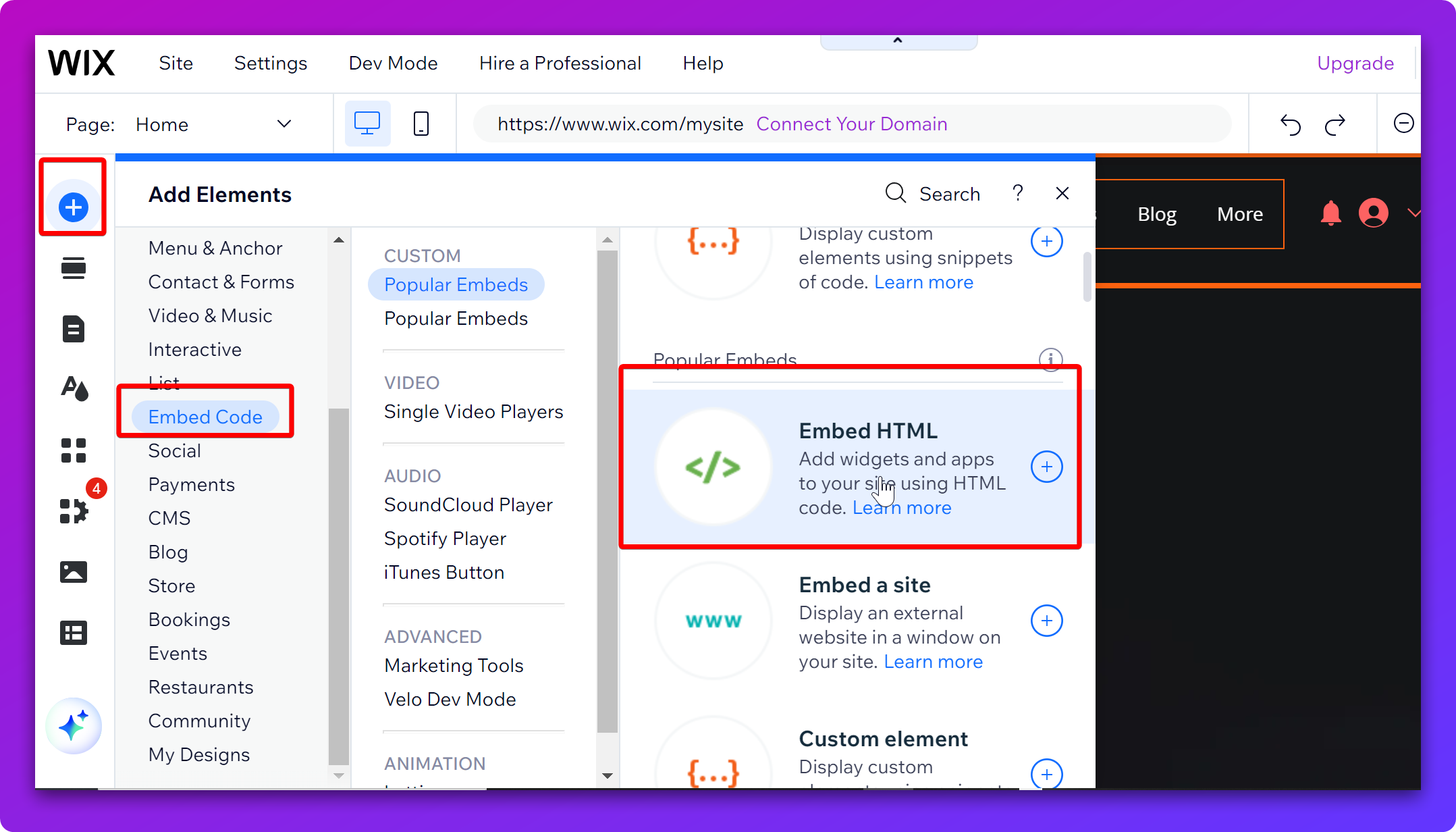
- The HTML settings window will pop up. This will create a placeholder for your HTML code.
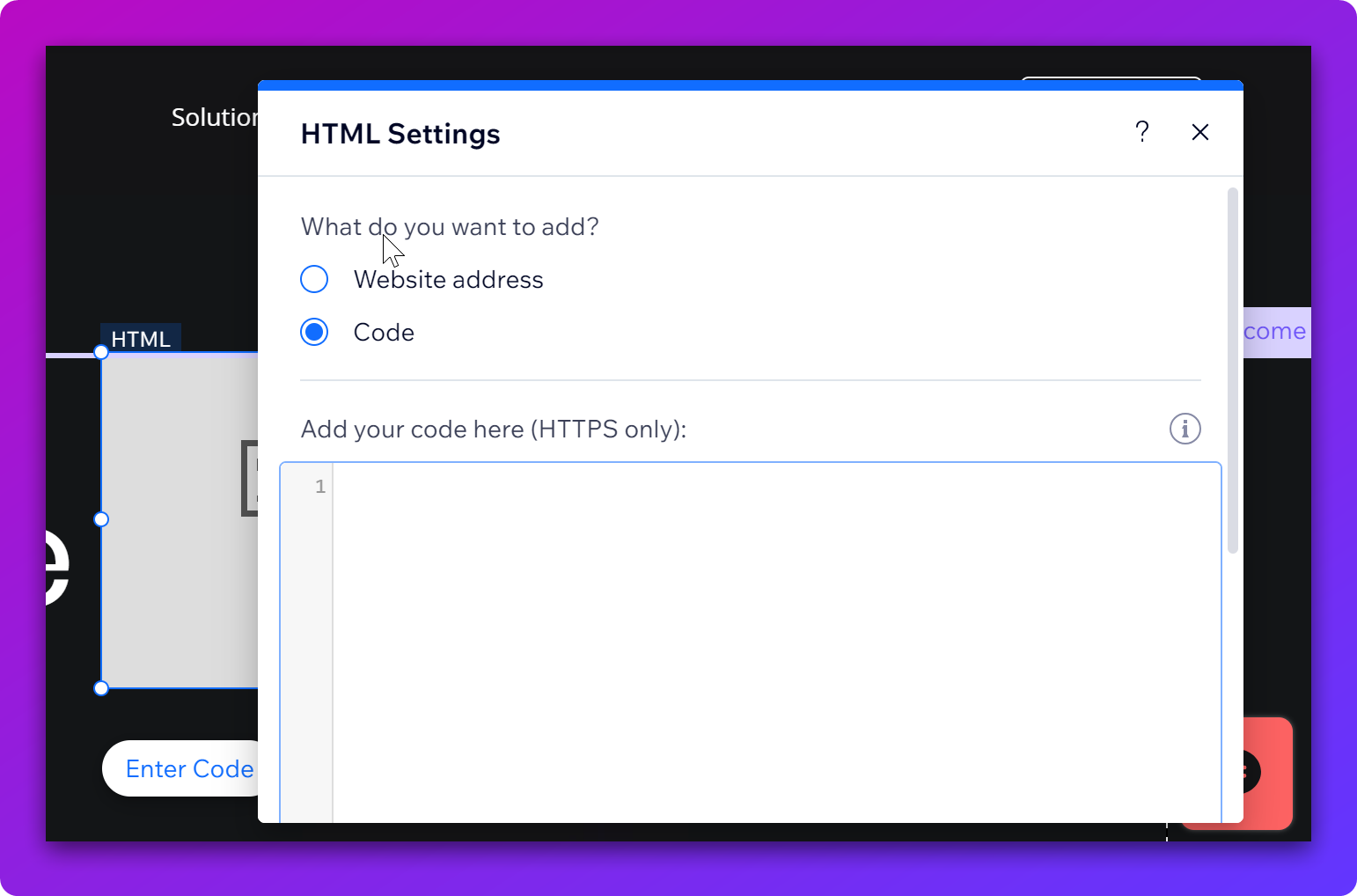
- Now we need to add the embed code generated by DepositFix.
However, for it to work in Wix, we need to wrap this embed code with HTML tags:
<!DOCTYPE html>
<html>
<head>
</head>
<body>
----Your embed code here-----
</body>
</html>
So we just need to replace “----Your embed code here-----” in the snippet above, with the actual embed code from DepositFix form builder that you copied earlier, so it would look like the following:
<!DOCTYPE html>
<html>
<head>
</head>
<body>
<script src="https://widgets.depositfix.com/v1/app.min.js"></script>
<script type='text/javascript' id='df-script'>    DepositFixForm.init({        formId: 'dff098a8-7775-4c6e-8af3-0b1c3429ea7e',        portalId: '4832819'    });
</script>
</body>
</html>- Paste the code in the code field, and click on “Update”
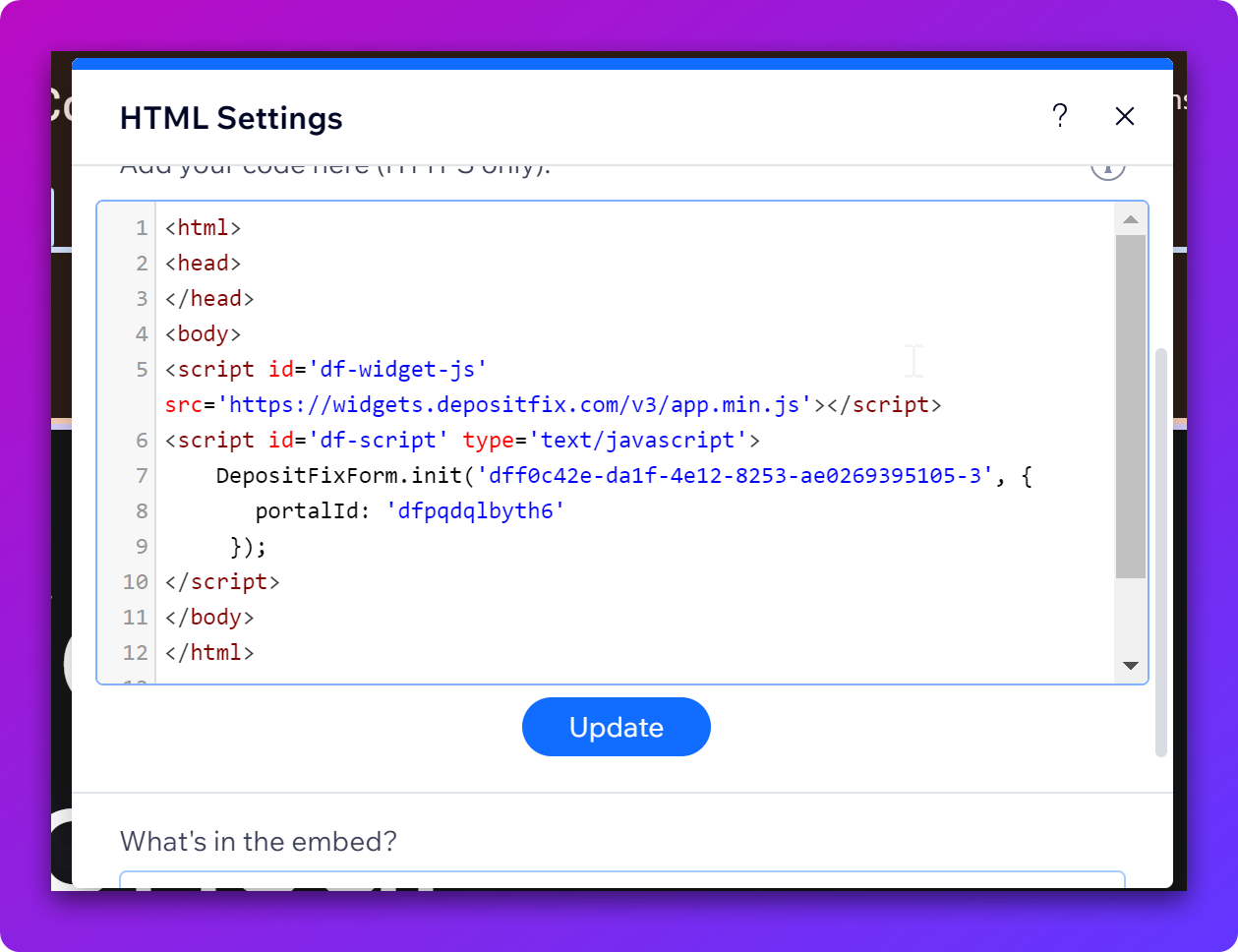
The form will be added to the page, and then you can click on Publish to launch your Wix page.