Set up Redirect After Payment
You can set the form to redirect to an external page after submission. This is commonly used for thank you pages after payments.
On the DepositFix Form Builder
Using the redirect URL on the form builder is the best and easiest way to set up redirection; it works with independent and HubSpot-based forms.
💡 Using the redirect URL takes priority, so even if you have a redirect URL or thank you page set up on the HubSpot form, adding a redirect URL here will overwrite that.
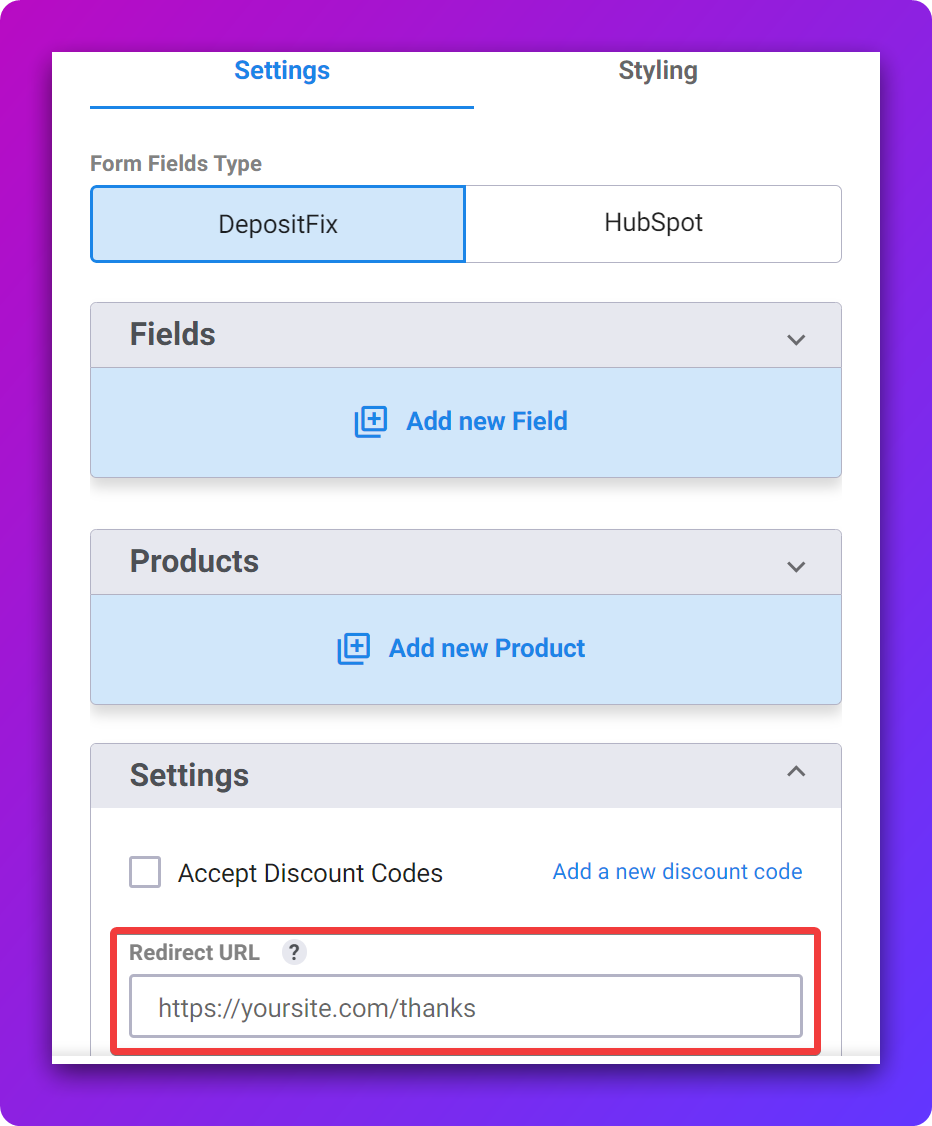
On the form builder > Settings > Redirect URL
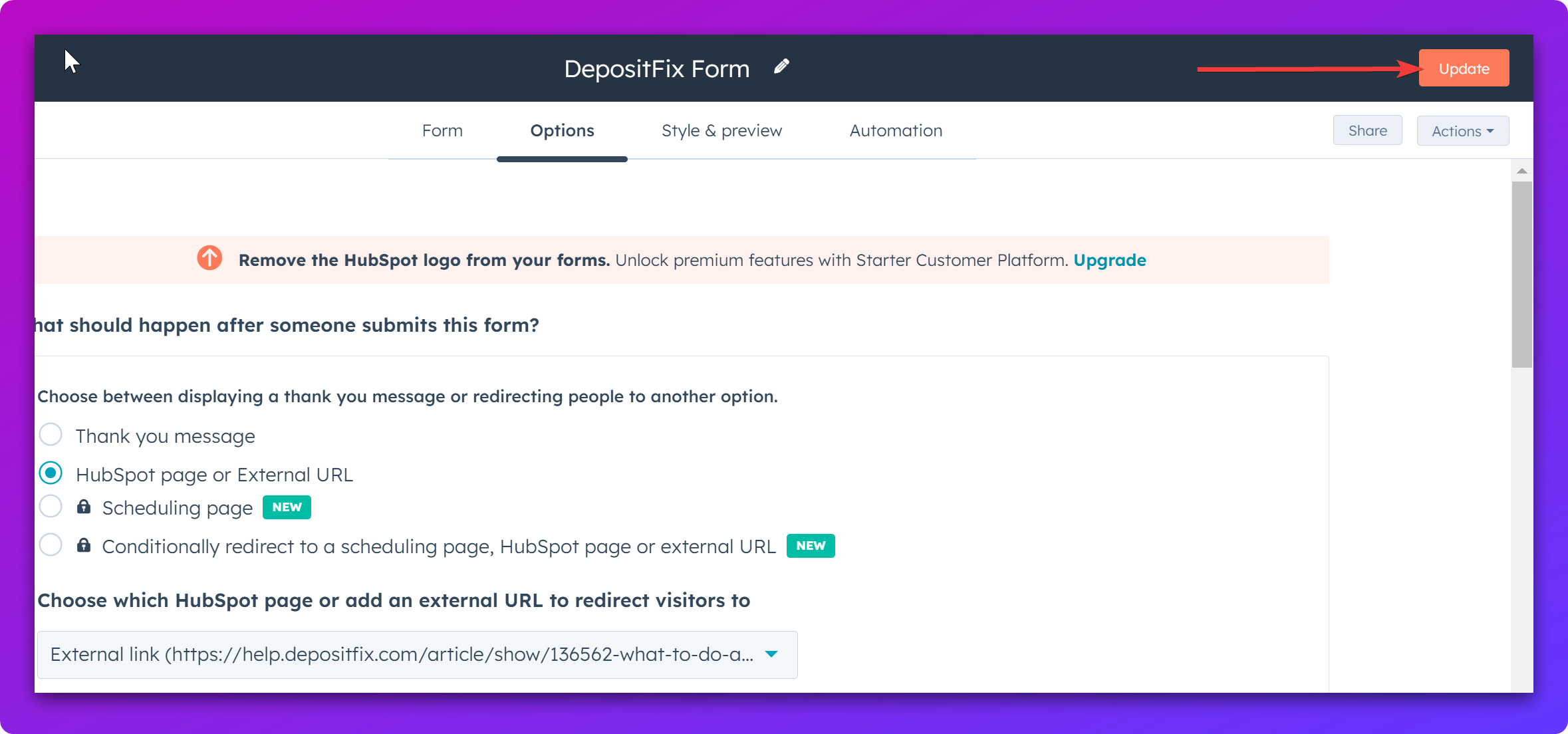
On HubSpot
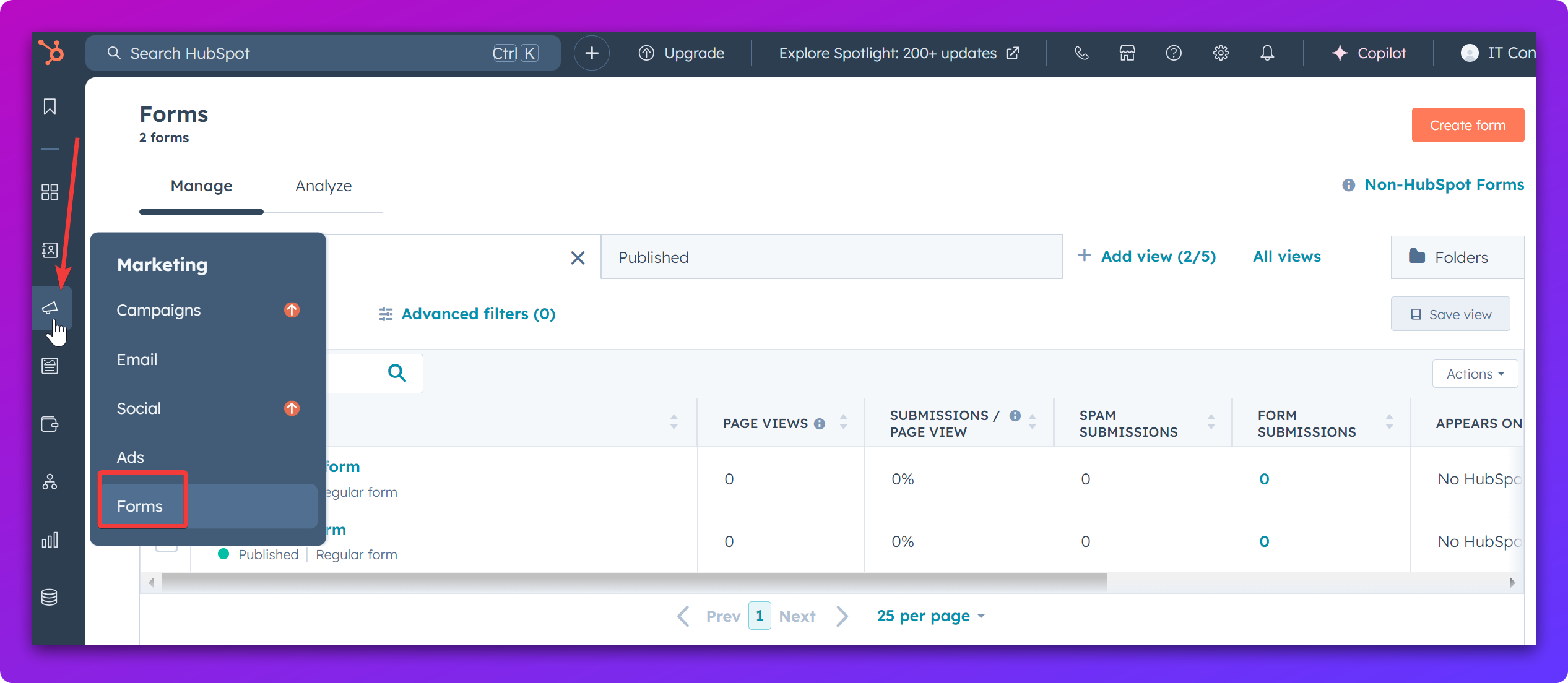
From your HubSpot account, access your base form by going to Marketing - Forms
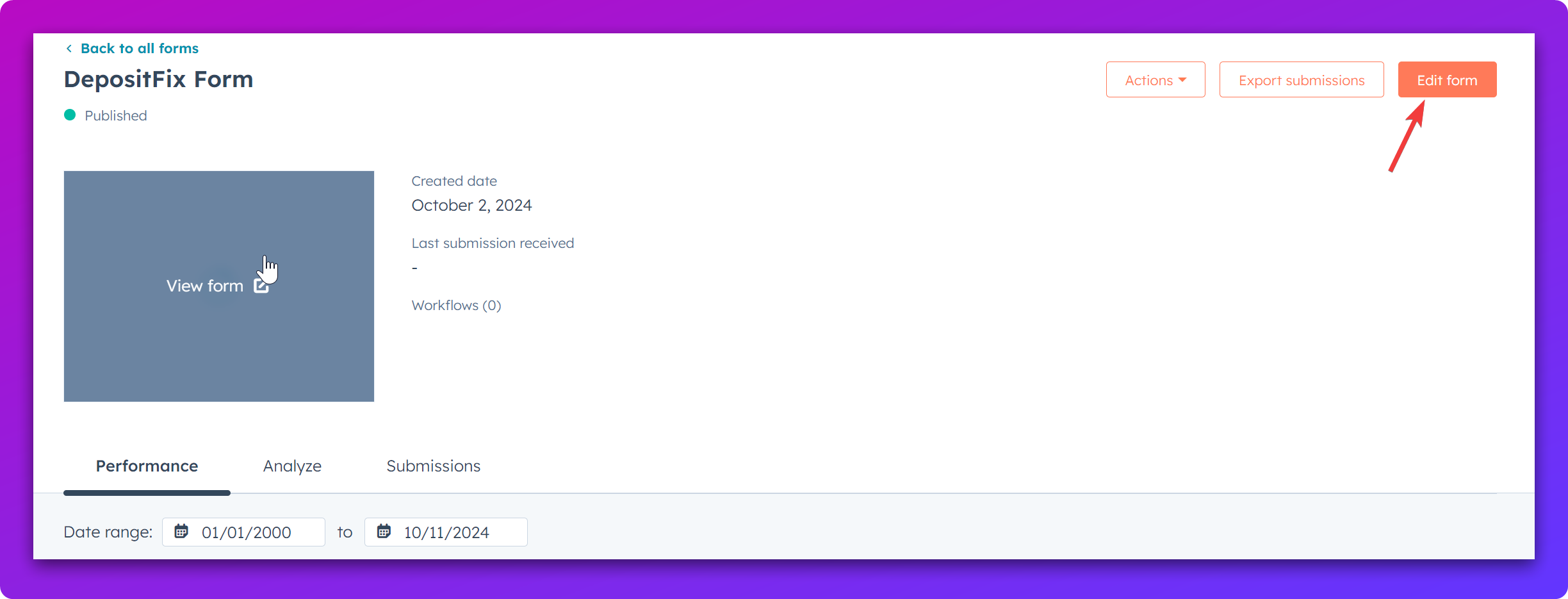
Choose the base HubSpot Form from the list and go to Edit form
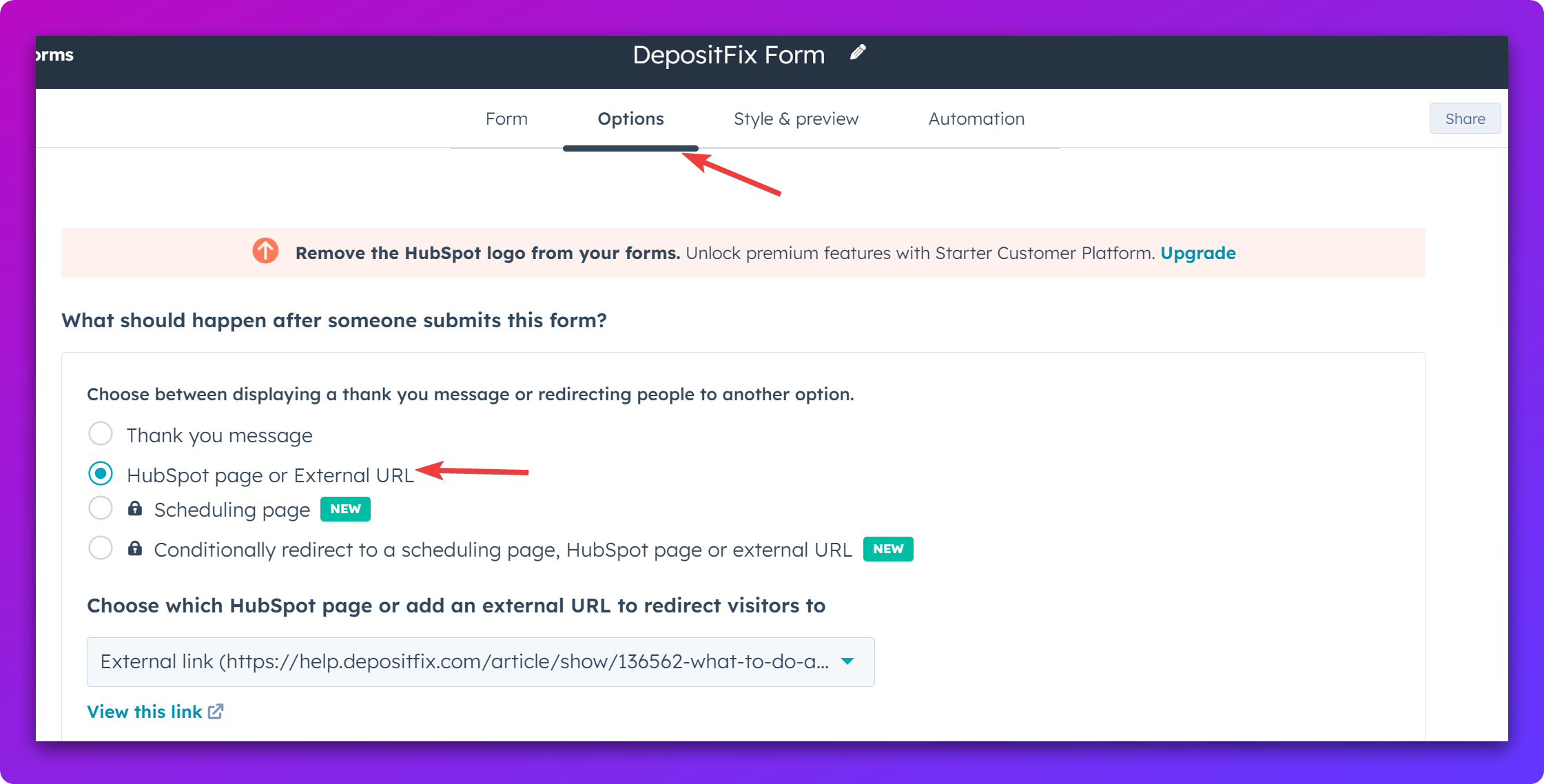
Go to the Options tab.You can add the URL or choose the page from HubSpot in the dropdown menu
DepositFix says:
We suggest creating a form specifically for the payments. There are instances where you may want to use the same form on another page and any edits made, will affect the payment form. Clone the form and just add “-DepositFix” on the name to give it distinction that this is for payments only.
Click on Update >Publish once done
You are all set; the customer will be redirected to the page after submitting a payment.