Create Your First Product
You can create a wide range of products inside DepositFix; these products can be single or recurring payment products.
💡 Products can include multiple prices
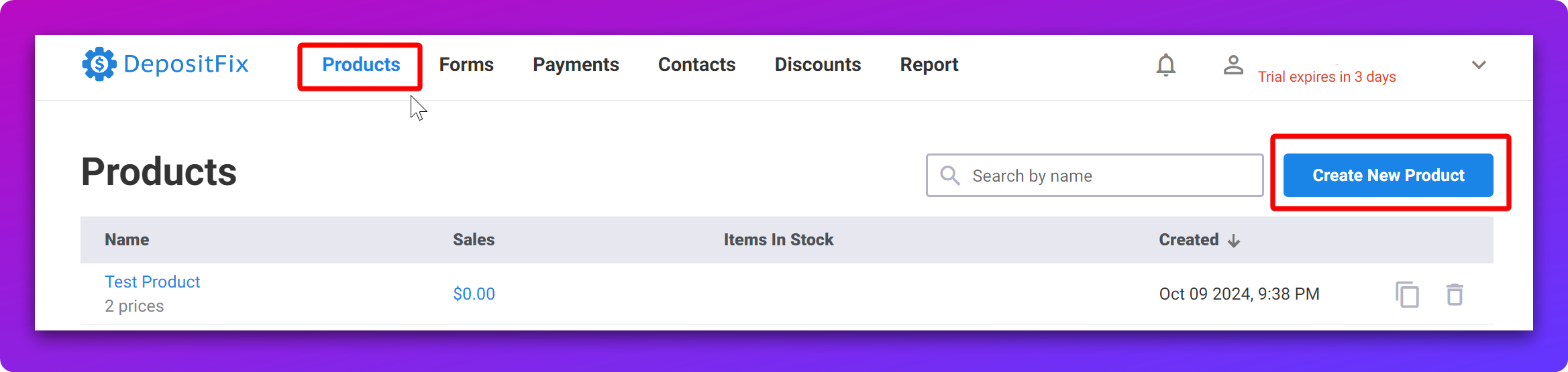
To create a new product, from the main menu, select Products, then Create New Product
You’re now in the Create Product window
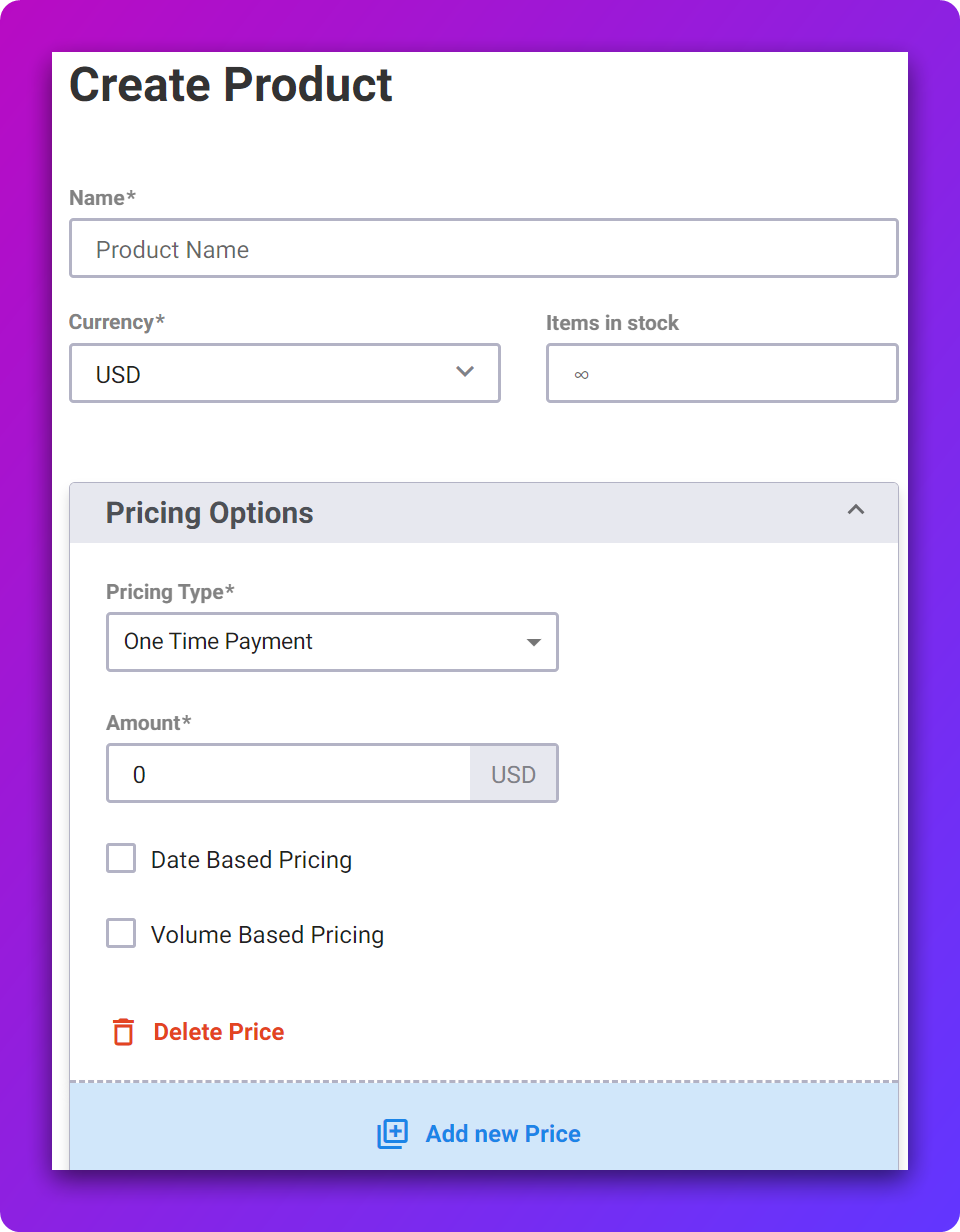
Fill in the details for your produce…
Product Details and Options
Name
Is the name of your product
Currency
Select the currency you’d like to charge
Items in Stock
How many items you plan to sell of this product, leave empty for unlimited number of items.
Pricing Options:
Select from
One-time Payment - Customers pay a one-time charge
Subscription - Customers pay a recurring payment; with this option, you can select the amount, payment interval (daily, weekly, etc.), number of charges, and number of trial days.
Deposit - 0 amount payment, only capture customers’ payment details
Amount
What is the price of the product
Date Based Pricing
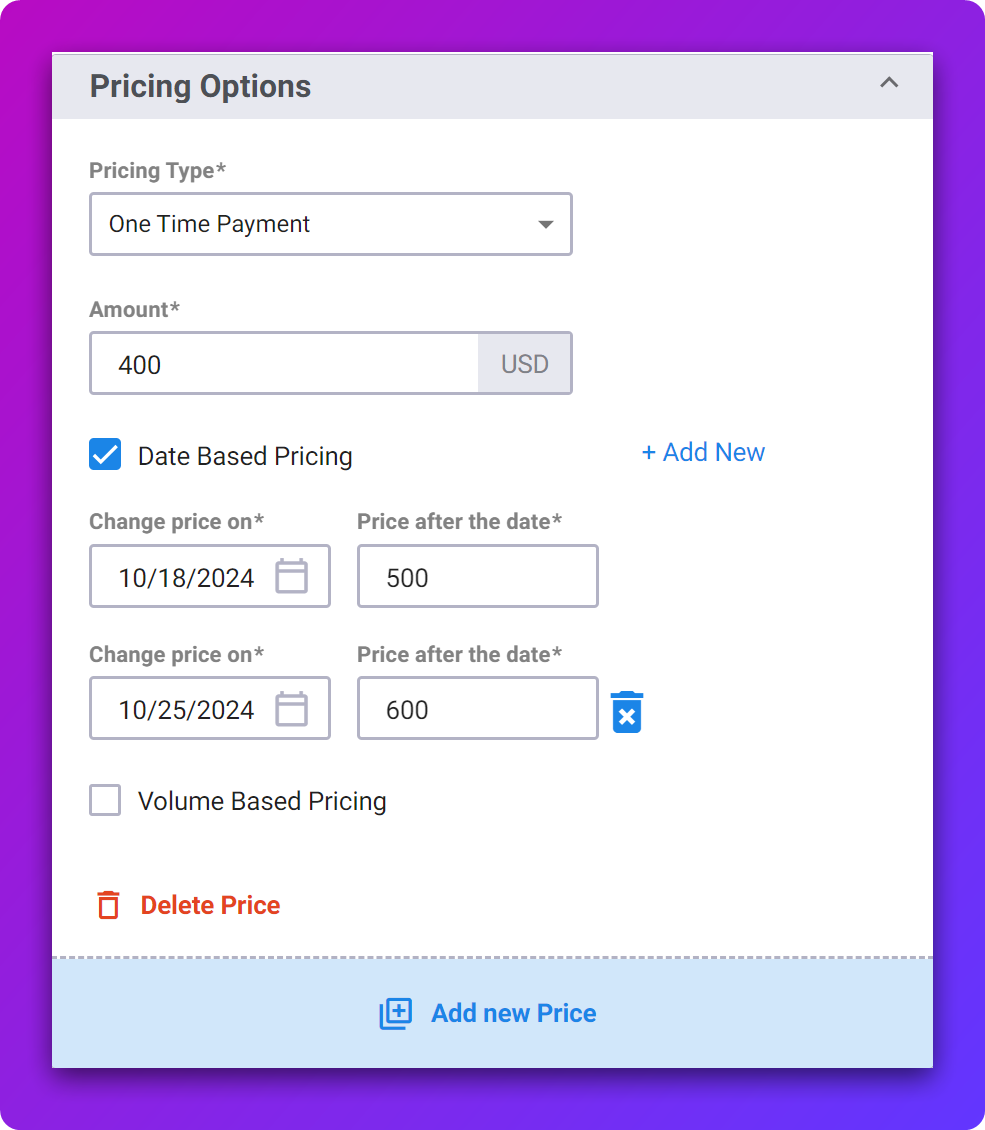
Date-based pricing allows you to Adjust Pricing Based on the date of payment Automatically. This is particularly great for promotional periods, like ‘Early Bird pricing.
💡 This feature is available for one-time payments and Subscriptions.
Add the default price in the Amount field, and then select any date(s) you’d like the pricing to change on and how much the new amount is after the change.
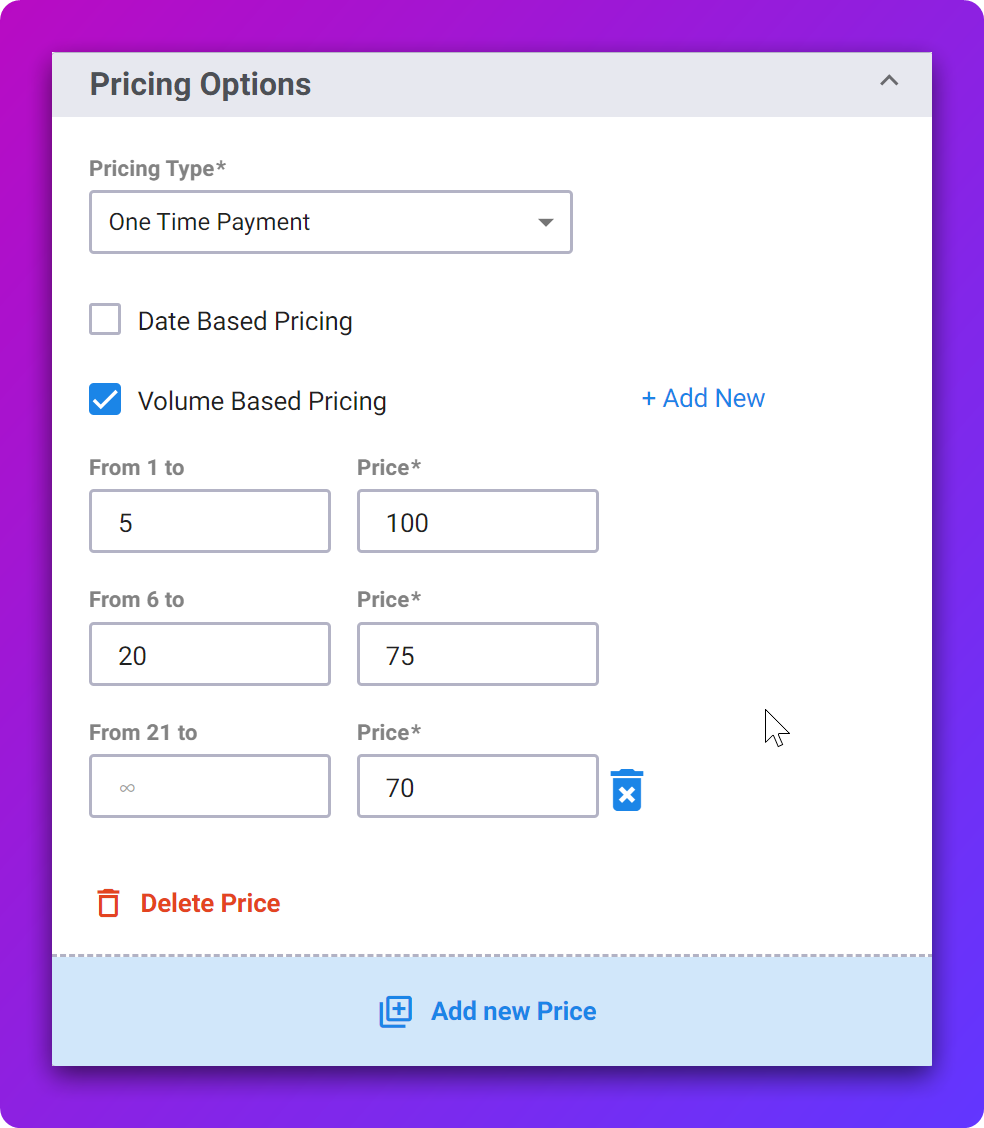
Volume Based Pricing
Adaptive Pricing means adjusting the price to meet demand, which means that you can offer different prices on the same product based on the number of items purchased.
💡 This feature is available for One Time Payments and Subscriptions.
Add the default price in the Amount field, and then maximum number of items sold at each price point.
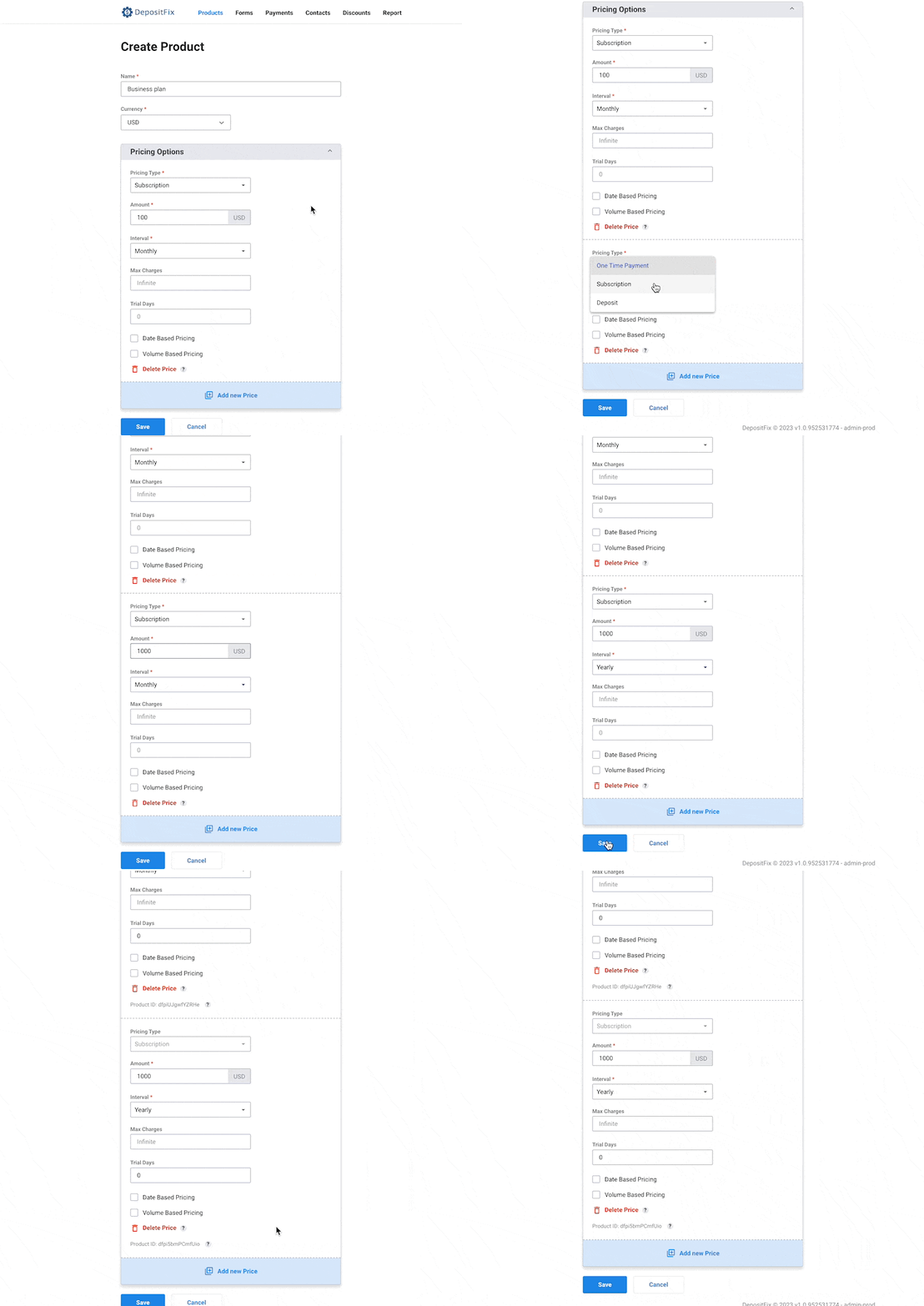
💡 Max charges refers to the number of times a subscription should be charged before it’s automatically cancelled. Leave empty if you want the subscription to run until customers cancel manually. Or use it to build payment plan products, as shown here.
Add New Price
With DepositFix products, you can add multiple pricing per product; for example, if you’re selling a business plan subscription, you may want to include one price for monthly payments and a different price for annual payments.
To add a new price, click Add new price and fill in your price details.