Troubleshooting and Disconnecting QuickBooks Online
Troubleshooting
-
Connection Error: Recheck that your QuickBooks Online login credentials are correct and that you have admin access.
-
Missing Transactions: Ensure you mapped accounts correctly under integration settings.
-
Sync Delays: If you selected daily sync, transactions may take up to 24 hours to appear.
Disconnecting QuickBooks Online
The recommended way is to disconnect directly from QuickBooks:
- In QuickBooks Online, go to the Apps section.
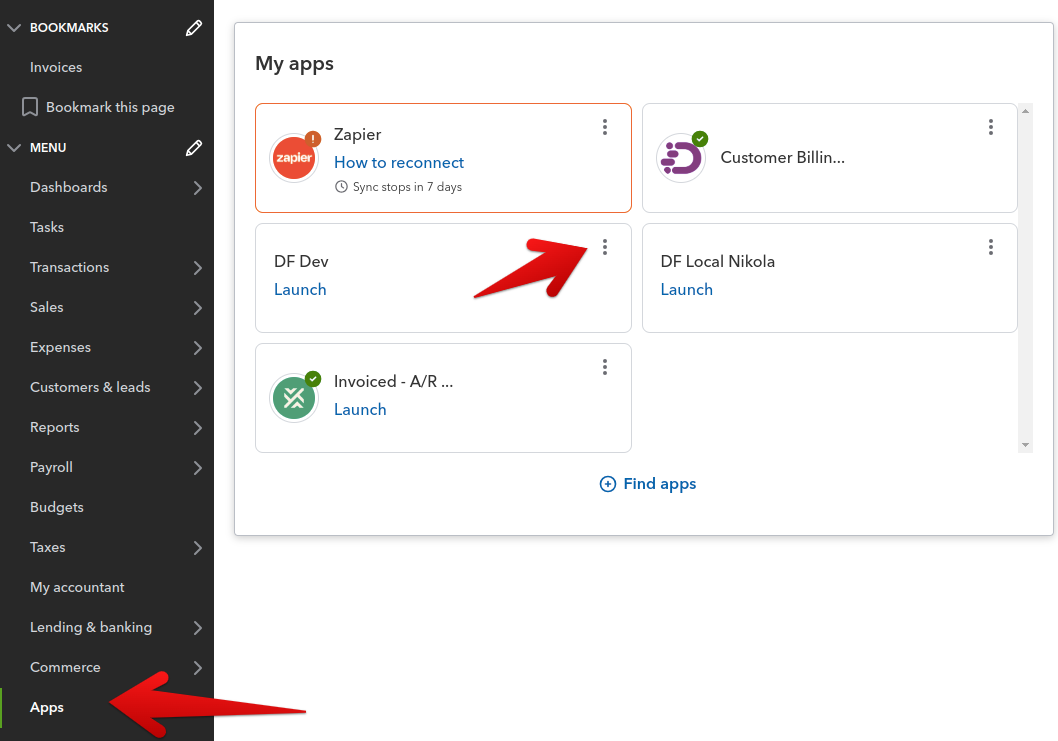
- Find the DepositFix integration.
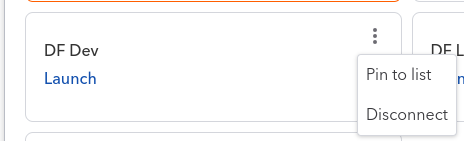
- Click Disconnect.
This method ensures that the disconnection is properly reflected on both sides. When you disconnect in QuickBooks Online, the integration is automatically removed in DepositFix as well.
💡
If you disconnect from DepositFix directly (via Settings > Integrations > QuickBooks Integration > Disconnect), the app will still appear in QuickBooks, but DepositFix will stop sending any data to QuickBooks.